
Technology · Exhibit 44-A · IBM Palm Top PC110 · Japan, 1995
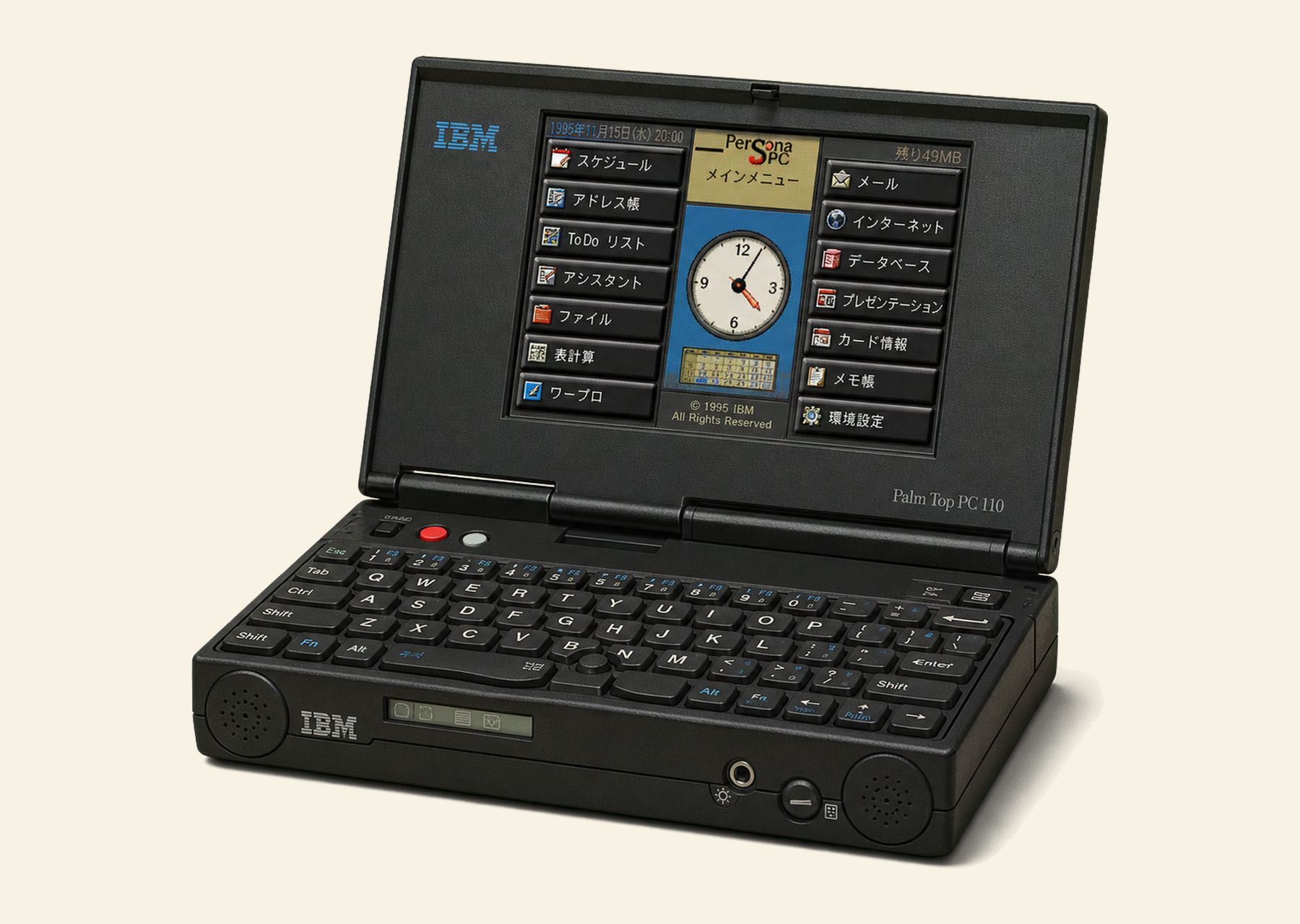
630 grams of 1995.
A full IBM-compatible PC the size of a paperback, bought as a travel computer, carried across China, The Gambia, Hungary and France, and still the smallest ThinkPad-class machine IBM ever made. This is the complete exhibit: the machine, the software, the field tests, and the community that kept it alive.
- Filed under
- Technology · Palmtops
- Reference
- REF 44-110
- First published
- 1997 · apj.co.uk
- Curated by
- Seamus Waldron
Dossier
What is this thing?
The IBM PC110 is a palmtop computer released by IBM Japan in 1995. Weighing just 630 grams with a full QWERTY keyboard, it runs standard PC software and was one of the smallest IBM-compatible PCs ever made.
The PC110 (machine type 2431) was IBM's smallest ThinkPad-class machine. Despite its tiny size, it was a fully functional PC. It ran DOS, Windows 3.1, Windows 95, and even Linux. It included PCMCIA slots, an infrared port and a built-in modem.
I bought mine as a travel computer. It was the perfect size for writing on the road, small enough to fit in a jacket pocket, yet powerful enough for word processing and email. Information about the PC110 was scattered across forums and personal pages; this exhibit brings it all together in one place.
The site as it was
Hardware
A desktop when docked, a palmtop on the road
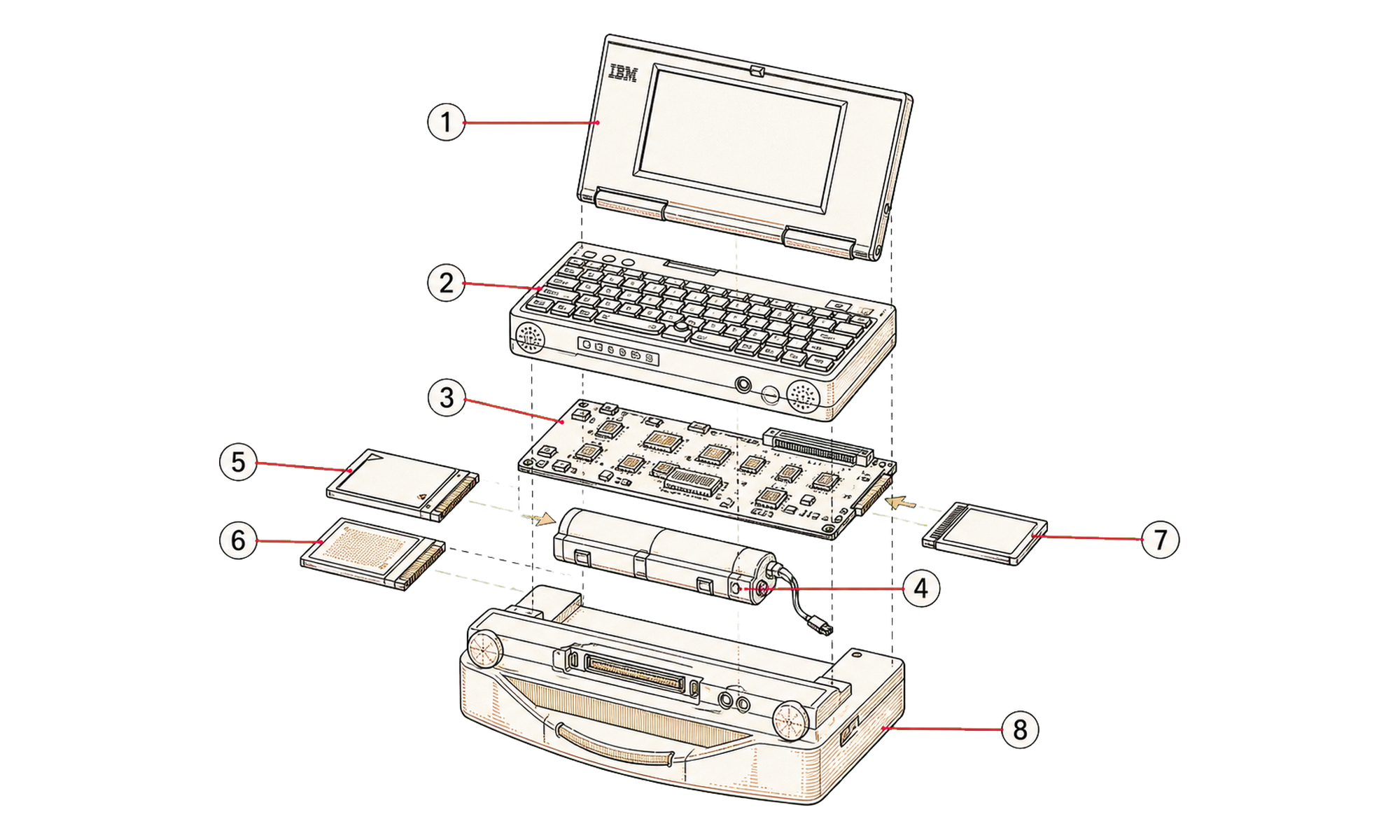
The PC110 has a specification that is hard to beat, even today, in a PalmTop. Plugged into the mains with external keyboard, mouse and monitor, you can use it as a DeskTop machine. I have mine at work as a second computer, connected to the internal network through a network adaptor that runs though the parallel port. On the road, the IBM PC110 can be used without the docking station, keyboard, etc and run software from the internal SanDisk.
| Light weight | 630g [1.3lb] (including 90g battery), A6 size |
| CPU | SL Enhanced i486SX-33MHz |
| Display | 640 x 480 x 256 pixels, 4.7 inch diagonal SVGA DSTN color LCD |
| Modem | Data/fax/voice modem built in, and is usable as telephone (uses "Wing Jack" modular jack) |
| Pointing | "Pointing Head" pointing device allows speedy one or two handed operation |
| Pen pad | Pen-sensitive pad for drawing or writing |
| Status LCD | Front-mounted LCD time and battery level indicator |
| Sound | SoundBlaster-compatible sound input and output |
| Infrared | Internal IrDA compliant 115kbps serial infrared high speed data transfer port |
| Flash | 4MB internal flash EPROM (comes formatted as the boot disk) |
| PC Card | Two Type II PCMCIA slots (can be used as one Type III slot) |
| CompactFlash | One "compact flash" SanDisk slot |
| Connectors | Connector for phone headset, external keyboard/mouse |
| Dock | Docking station adds external monitor, keyboard, mouse and floppy. Also adds serial and parallel ports. |
| Power | 10.5v power supply |
The unit
Light weight: 630 g (including the 90 g battery), A6 size. A front-mounted LCD shows time and battery level even with the lid shut. The “Pointing Head” pointing device allows speedy one or two handed operation, and a pen-sensitive pad sits below the keyboard for drawing or signing faxes. Sound in and out is SoundBlaster-compatible.
PCMCIA and SanDisk
On the left side of the machine you have 2 Type II PCMCIA slots, though the chances are that you will use up both of them for a hard disk. On the right of the machine you have a SanDisk CompactFlash slot. This is a smaller, PCMCIA compatible, flash card which has the promise of being used widely in the future. Currently, some digital cameras use SanDisk technology to store images.
There is also 4 MB of internal flash EPROM, formatted as the boot disk.
Data/fax/voice modem
The internal modem is a bit pathetic, but just about useable. Windows 95 reports it as a “Standard Modem”. I have not used the PC 110 to send a fax yet nor have I used it as a phone. As the earpiece for the phone broke of very quickly and thus broke off a part of the circuit, it is unlikely that I will ever use any of the telephone functionality. However, from within Windows 95, you can use the microphone in the mouthpiece to record .WAV files.
PCMCIA hard disk
The optional hard disk is a Viper 260 meg device. You can make it bootable and with compression you can double it's capacity. I will post speed test results eventually.
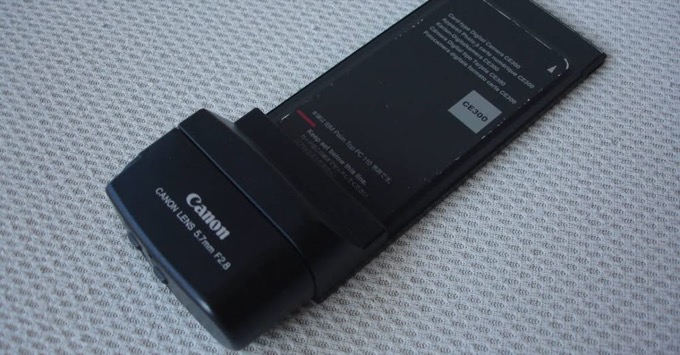
Canon CE300 camera card
Canon made a digital camera that lives in the PC card slot. The CE300 is a Type II card with the lens housing on the end, and the housing swivels through 180 degrees so it can face you or face away. It went on sale in Japan in December 1995 at ¥39,800, and the box, the card and the software all say PC110 on them: the card itself is labelled “For IBM Palm Top PC 110”.
There's no screen and no memory on the camera. The PC110's display is the viewfinder, refreshing about ten times a second, and pictures go straight onto the disk as 320×240 colour JPEGs from a quarter-inch, 270,000-pixel CCD. The lens is a 5.7mm f/2.8 (about 55mm in 35mm terms) with an f/8 setting and a macro mode down to 8cm. The catch is the software: CCU.EXE runs under Japanese DOS only, which is why one reader in the FAQ kept their flash drive booting Japanese DOS after moving to English Windows 95. Canon's little card won a Good Design Award in 1996. Dan Basterfield's CE300 page has the full story.
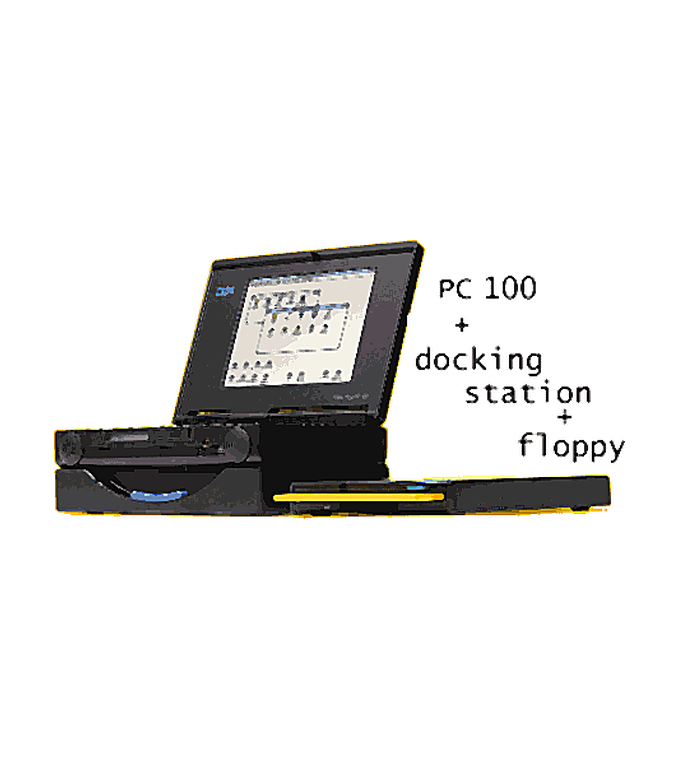
Docking station
The Docking station has ports for an external monitor, external keyboard, external mouse (both of these have to have PS/2 connectors), a parellel and serial port and also a floppy disk connector. Note: the main unit does have a connector for an external mouse and keyboard, though these are not PS/2.
Power
The PC 110 runs off a 10.5v power supply. This is fine for Japan and North America, though in Europe you are a bit stuffed. You have two options in europe.
- Buy a transformer. This is not really an option unless as you have to lug the thing around with you. I do have a transformer, but I leave it at work so I can plug my PC 110 into the mains during the day.
- Buy a multi-adaptor from a Sony center or Tandy or some such. Set it to 9v and plug in. I have had absolutly no trouble with this. Infact, I am planning to buy a 9v car adaptor, so my PC 110 can be used on the move.
Marko Schuster's FAQ: "When the PC110 is turned on, the battery will not be charged unless you use a small utility called 'ultrachg'. (However, the charging then takes MUCH more time!)" Ultra Charge, "a utility to recharge your PC110 whilst you work", is on the downloads shelf.
Thirty years on, the hardware finally has its documentation. Ahmad Byagowi's Open-Source PC110 project has reverse-engineered the whole machine: recreated KiCad schematics and board layouts for the mainboard, PSU, keyboard, dock, modem and RAM module, ROM dumps, an unofficial service manual, and mods from a CPU upgrade to a TFT screen. There is even an emulator, PC110 Atlas, for everything from an iPhone to Linux.
Operating systems
A tale of three boots
The IBM PC110 can run any operating system that any IBM PC compatible computer from the mid to late 90's can. This could be PC Dos, MS Dos, Windows 3.1, Windows 95 (even Windows 98 at a pinch), Windows NT 4.0, OS/2, Unix even CP/M.
On my IBM PC110, I've had two operating systems. Pc Dos 7/V with Windows 3.1, also with Windows 95.
The bios has been setup so that the PC 110 tries to boot from the hard disk. If this is not present, then it will try and boot from the external floppy disk. Finally, after all else has been tried, the machine boots from the internal SanDisk.
- 1stPCMCIA hard diskWindows 95, compressed, ~400 MB reported free
- 2ndExternal floppyif the hard disk is out
- 3rdInternal SanDisk4 MB flash, PC DOS 7 and PersonaWare
The SanDisk is a flash card that is pin compatible with PCMCIA, though much smaller. The internal SanDisk has 4 megs of room on it. 2 Meg of this is used up with a stripped down install of PC Dos 7. I have also added some third party software to make the system more useable in a Dos environment.
My main control system is LapLink 3. LL3 allows me disk and remote machine access. I can view files, copy etc. etc. The main advantage is that the LL3 footprint is very small. I reduce the size of this further by using PkLite. This piece of software takes a .COM or a .EXE file, compresses it and then recreates an exectuable file that can be run from the Dos prompt. The downside is that it takes a fraction longer to start a program, though this I can live with!
Based on information from Amanda Walkers page, I have created a boot script that will allow me to boot to either Pc Dos 7 (English), Pc Dos 7 (Japanese) or (believe it or not) a ZX Spectrum Emulator.
1. PC-DOS 7 (E)
2. PC-DOS 7 (J)
3. Spectrum Boot.

Enter a choice: 1_
In the PCMCIA slots I have a 240 meg hard drive. This has Windows 95 installed on it. To give me enough room for applications, this drive has been compresssed and only a minimal install of Win95 has been used. I have a reported 400meg free.
Any More?
These is also a port for another SanDisk. These come in 4, 8 and 16 meg versions. It is my intention to attempt to install yet another OS onto this. The beauty of tbe PC110 is that is is incredibly easy to swap from OS to OS using the PCMCIA and SanDisk technology.
Mainly, I use Windows 95 when I am plugged into the mains and Dos 7 when I am on the move. By doing this I can get (in theory), three hours of battery life - I've yet to test this!
My CONFIG.SYS: the three-way boot menu
Switches=/F

[Menu]
MenuItem=PCDOS7E, PC-DOS 7 (E)
MenuItem=PCDOS7J, PC-DOS 7 (J)
Menuitem=Spectrum, Spectrum Boot.

[Common]
BUFFERS=20
FILES=40
DEVICE=C:\DOS\HIMEM.SYS
DEVICE=C:\EMM386.EXE RAM I=B000-B7FF I=C900-DBFF X=DC00-DFFF FRAME=E000
DOS=HIGH,UMB
DOSDATA=UMB
SHELL=C:\COMMAND.COM C:\ /P /E:512 /H
DEVICEHIGH=C:\DOS\POWER.EXE ADV:MAX
DEVICEHIGH=C:\EZPLAY\SSDPCIC1.SYS
DEVICEHIGH=C:\EZPLAY\IBMDOSCS.SYS
DEVICEHIGH=C:\EZPLAY\RMUDOSAT.SYS /MA=DC00-DDFF /IX=5,10 /PX=15E0-15EF,35E0-35EF,102
DEVICEHIGH=C:\EZPLAY\$ICPMDOS.SYS
DEVICEHIGH=C:\EZPLAY\PAWATAS.SYS
DEVICEHIGH=C:\EZPLAY\AUTODRV.SYS
DEVICE=C:\SMARTDRV.EXE /DOUBLE_BUFFER

[PCDOS7E]

[PCDOS7J]
COUNTRY=081,932,\DOS\COUNTRY.SYS
DEVICEHIGH=C:\DOS\$FONT.SYS /MSG=OFF
DEVICEHIGH=C:\DOS\$DISP.SYS /MSG=OFF
DEVICEHIGH=C:\DOS\$IAS.SYS
DEVICEHIGH=C:\DOS\POWER.EXE ADV:MAX
INSTALL=C:\DOS\IBMMKKV.EXE /M=S /Z=4 /C /L /J=90 /S=C:\DOS\MULTDICT.PRO /U=C:\$USERDICT.DCT

[SPECTRUM]

[COMMON]
LASTDRIVE=F
STACKS=9,256
My AUTOEXEC.BAT
@Echo Off
Cls
C:\SMARTDRV.EXE
PROMPT $P$G
PATH C:\;C:\DOS;c:\Spectrum
LH C:\DOS\MOUSE.COM

Goto %CONFIG%

:PCDOS7E
LH C:\DOS\KEYB.COM JP

Goto End

:PCDOS7J
LH C:\DOS\KEYB.COM JP,932,C:\DOS\KEYBOARD.SYS
LH C:\INKDRV.COM
IF EXIST C:\PW\PW.BAT C:\PW\PW.BAT

Goto End

:SPECTRUM
LH C:\DOS\KEYB.COM JP
C:\SPECTRUM\Z80
Goto End

:EndSoftware
PersonaWare: the Japanese PIM, decoded

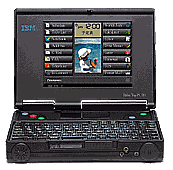
The IBM PC110 comes with a stripped down version of PC Dos 7 and a PIM called PersonaWare. To receive calls whilst in Dos mode you get a TSR called coSession and also a program to convert sound files (wav <> tvc). There is also a Japanese Dos only configuration program called PS2. If you buy the optional hard disk, you also get Windows 3.1(J).
PersonaWare as supplied with the PC110 is Japanese. That is always going to be a problem. However, here, for the first time, you can download a full version of PersonaWare in English, three key modules converted, and now I use it extensively.
(ESC=cancel/abort, ENTER=ok; F12=save&exit.) Generally I'd say: just take a bit time and try everything out. You cannot format your flash, you could only delete some files, so make a backup first. By pressing F1 you'll get help, of course always in Japanese.
The PersonaWare field manual: every application, every F-key (from the Marko Schuster FAQ, prettied up)
Main screen
F2 add an application, you can install every com or exe file in the PATH, even “win.com”. F3 delete, F4 change (description, button text, executable, icon, picture), F5 move, F7/F8 scroll if more than 2×8 are installed. F10 Secretary, today's schedule and your biorhythm. F11 tools and settings. F12 toggles the button bar; Ctrl-Q quits. Icons are OS/2 format; the pictures are 190×250 16-colour BMPs, no problem to draw your own.
Schedule
F2 add entry (description, secret flag, start/end, place, alarm), F8 repeats (daily/weekly/monthly/yearly), F5 search, F6 switch view, press d/w/m/h/l to jump straight to day, week, month, half-year or list. F7 go-to calendar, F9 zoom, F10 to-do list, F12 save & exit. The DEFAULT.SCD file is just a comma-separated list, very easy to convert to and from.
Address
F2 add entry, and yes, F11 > o adds a 150×150 16-colour BMP photograph to each person. F10 dials the selected entry. DEFAULT.ADD is comma-separated too, which makes the Outlook converter possible.
Not a special email program, it's a terminal programme! F3 hang up, F5 capture on/off, F7/F8 download/upload (X/Zmodem). Either it has no ansi/vt100 or I haven't find a way to activate it.
FAX & Telephone
F6 toggles “service” mode (call a number, receive a fax); F10 chooses text-only or text with a header or footer picture you draw on the memopad. Faxes go in fine-mode with a Japanese header. Telephone dials a number with the built-in modem.
World Clock
Get the English city1s.txt first so the cities aren't in Japanese. Four clocks at once; F5 answers “what's the time in X if it's …:… here”; F8 re-centres the map on your home town.
Calculator
More than it looks: F6 switches through scientific, measure/weight conversion (mm to miles, ha to acres, °C/°F/K) and financial modes. F9 shows everything in decimal and hex.
Editor & Draw Memo
An ASCII editor with search/replace, three faces and zoom (Ctrl-F9 switches font). Draw Memo: sketch on the memopad with the pen, F9 flips between drawing and a thumbnail index.
Game
Clear the table by removing matching adjacent tiles, (n−2)² points, bonuses for clearing a whole tile type. F8 is “magic” (−100 points, high risk). Once you get into it, it is fiendishly addictive and difficult.
Personal
Your private area, password-protected: name, blood type (used for your daily “fortune”), addresses, insurance card, driving licence, passport, credit cards, anniversaries. Press F5 in the Secretary for a fortune based on your blood type, Business, Money, Love, lucky number.
DOS & Power MGT
DOS opens a DOS box (type “exit” to return). Power MGT runs the PS2 programme, low/med/high power modes, LCD and power timeouts, Japanese DOS environment only.
The field manual, key by key
Beneath is text from the Marko Schuster FAQ which is an absolute MUST read when you get your PC 110. All I have done is pretty things up.
Main screen: getting around, the F11 Tools menu, and where the files live
After starting personaware (say, after booting the PC110 from the internal flash-disk), use the mouse or cursor buttons to select an application and press Enter. Exit an app. with F12. In the most app. you'll come back at the same page the next time you start it. You can copy&insert text with ctrl-c/v/x (mark with shift-cursor). By pressing F1 you'll get help, of course always in Japanese, but you could see how special keys are assigned in this prg.). On the main screen you can turn on/off the button bar with F12 or pressing the mousebutton in the right bottom corner. The icons are generally easy to understand.
You can change each icon, picture, description from the main screen, you can also add and delete applications or move their position. It's possible to have more appl. installed than you can see on the screen (scroll with cursor or F7/F8).
F4:  Change the selected application. A requester is popped up where you
     can enter the following: (C)=Description (shown under the clock),
     (B)=button-text, (E)="program.exe" executable, (I)=filename of the
     icon, (P)=filename of the picture. Bottom buttons: Ok, Cancel, Help
F11: Tools-Menu: (S)=Settings, first field: what should be done if a RING
     occures on the internal modem (fax/?/nothing), the second field is
     called alarm in the documentation and in the third I think you could
     specify the time the PC110 should wake up.
     (P)=Program settings, (1)/(2) one-click/doubleclick to start prg.
     (X)=Exchange title&button names
     (B)=bubble-help on/off
     Tools-F11 (big field) will exit personaware and turn off the PC110.
The icons are OS/2-icons, I found no programme for dos/win yet to convert or edit them.
All pictures&icons are located in \pw\system\, where also exist some more icons and bmp-files used by the applications. For example, I've created a new background and new button-images and enhanced some other things.
In \pw\data\ you'll find all files used by the applications: datafiles (schedule/address/..), .ini-files and so on. You'd like to have a look at some of the .ini-files, but it's most useless...
Schedule DEFAULT.SCD
F2:  add entry: Description, secret, start time, start date, end time,
     end date, place, alarm on/off (x minutes before), note
F3:  abort edit
F4:  save new entry
F8:  repeat: P=Period (from date - to date, every X days/weeks/...)
             d=daily, w=weekly (monday, tuesday, ... sunday)
             m=monthly: per day, per .. weekday (? .. japanese ..)
             y=yearly
F3:  delete entry (if you delete a repeated entry, press Y to delete only
     this and N to delete all (after the first ok/return to delete)
F5:  search
F6:  switch to another view. Press d/w/m/h/l to jump "fast" to a view.
     (day/week/month/year/list)
F7:  go to ..., opens a small calendar.
F8:  go to today and now
F9:  zoom in/out (change font size)
F10: switch to to-do-list
F11: tools: (F)=file: O=open, S=save(?), D=delete
            (S)=secret area (-> enter password)
            (P)=print
            (R)=printer settings (IBM or ESC/P)
            (T)=settings: default entry duration (60/30/15 minutes)
                (E)=don't display time in day-view (if selected)
            (H)=special days which are on the same day every year: A=Add,
                E=Erase. D=month/day, N=name of the day (holidays)
                they're marked as "red" but their name isn't listed in
                any of the views
            (Y)=(It seems you can give names to a period of years here)
F12: save&exit to main screen
d:   day-view
w:   week-view (left=sunday, right=saturday)
m:   month-view (left=sunday, right=saturday)
h:   half-year-view
l:   list-view
enter: change selected entry (look at "F2" for further information)
If you'd view at the DEFAULT.SCD-file, you'd see the format of the file in the first line: date,time,to date,to time,subject,place,alarm,alarm lead time,repeat,repeat,every,start date,end date,note
ToDo List and Notebook DEFAULT.TDD · DEFAULT.NTD
ToDo List. Sorry, as I don't needed this yet, I cannot say anything. However, from the DEFAULT.TDD-file: date,to date,subject,category,priority,done,done date,note
Notebook. Not many differences to the "main" operation things, buttons&tools. Should be no problem to check how it works.
DEFAULT.NTD calls its fields: date,time,subject,category,note
Address DEFAULT.ADD
F2:  add entry: name,category,secret,"yomi" (here you HAVE to insert some
     special japanese letters),birthday,Tel1,Fax1,Zip1,Adress1,office(?),
     post(?),Tel2,Fax2,Zip2,Address2,station(?),EMail, Note.
F3:  cancel
F4:  save
F11: o: add picture to this entry (YES! You can add an 150x150 16-color
        BMP-file to each entry. Nice, eh?)
     n: no picture
F3:  delete entry
F5:  search
F6:  change view (list-view/list&entry-view)
F7:  display only entris with selected category
F9:  zoom in/out (change font-size)
F10: dial selected entry
F11: (F)=file (same function as in 'schedule')
     (S)=secret ('')
     (P)=print ('')
     (R)=printer settings ('')
     (O)=which entries should be displayd in the list-view
F12: save&exit to main screen
Ctrl/Shift-Cursor in list-view: change the size of the selected column
enter: view/change selected entry (look at "F2" for further information)
If you'd view at the DEFAULT.ADD-file, you'd see the format of the file in the first line: yomi,name,category,home tel number,home fax number,home zip,home address,birth day,office,station,post,office tel number,office fax number,office zip,office address,email,photo file name,voice file name,note1,note2,note3
This means it's only a ","-seperated list, this makes it very easy to convert to/from personaware! And no, I don't see anything about "voice file" in the application. Maybe on newer versions. And no, the birthday isn't included into the schedule automatically, but it's displayd in the "info"-field of the secretary (It's like an adventure to find out and understand everything of this programme).
E-Mail, FAX and Telephone
E-Mail.
F3:  hang up
F4:  connect?
F5:  capture on/off
F6:  ? (dial japanese services)
F7:  download file
F8:  upload file
F9:  zoom in/out (change font size)
F11: settings: phonebook,userid,password,dial-mode,pre-number,?,?,bit,
     stopbits,parity,com1/2, transfer protocol (X/Zmodem),path,init-string
FAX.
F3:  abort
F4:  start
F5:  view fax (hm.. ?!)
F6:  normal/"service"-mode ("service" means you call a number and receive
     a fax)
F9:  choose an entry to dial from the address/phonebook
F10: choose if you'd like the fax to be text-only, text with header
     picture or text with bottom picture. Then you can edit the text and
     draw something on the memopad for example.
F11: settings: dialmode, pre/out-number (inserted before the number is
     dialed), com-port, your phone-number (I think), (your phone number
     again ?)
Faxes are sent in fine-mode with a japanese header incl. date/time/pages.
Telephone. Dials a phone number with the built in modem. If you have problems with one of the default settings, just try another one.
IR Connect and World Clock
IR Connect. As I have no other device with infrared port, I have no experience with this part yet.
World Clock. First you should get my english "city1s.txt"-file so you can see the name of the cities in english and not in japanese. Should be installed in \pw\data\-directory. I think you cannot add cities from the worldclock-application, you have to edit this text-file directly with an editor.
F2:  add selected city. You can see max. 4 cities simultaneously.
     The symbol besides the time is daylight-saving-time on/off. You are
     then asked wether to adjust the clock +1/-1h or not.
F3:  delete selected city-view/clock. (Doesn't delete the city from the
     file)
F4:  use the selected city (from the map) as the city displayd in the
     selected clock
F5:  "what's the time in X (Y,...) if its ..:.. in the selected city".
F6:  move selected city (well, its position in the clock-line)
F7:  set alarm
F8:  unzoom & center the map to your home-town.
F9:  zoom map in/out
F11: change time and home town
F12: exit
Calculator: the conversion table
Just a calculator. Really? No, it has more features you might have thought at the first look. Press F6 to switch through its modes: scientific, measure/weight/.. and financial.
Scientific mode: you can use "s" as sin and so on, look in the F1-help for the shortcut-keys. F9: display everything in decimal&hex-mode.
measure/weight: you can change the kind of transformation with the button-list on the left. Here's a complete list, the first number is the line-nr of the left button-list and then the bigger buttons in the mid are listed from left to right, top to bottom (you'll see the english in the display):
1: mm, ft, cm, yard, m, mile, km, <japanese>, inch, <japanese>
2: m^2, <japanese>, <japanese>, <japanese>, ha, acre, <japanese>
3: cc, gal(us), l, <japanese>, m^3, <japanese>, pint, <jap.>, quart, <jap.>
4: g, <japanese>, kg, <japanese>, t, <japanese>, oz, lb
5: degree celsius, farenheit, kelvin
financial mode: too much japanese here. Look at F1 and the documantation for the formulas used here, maybe you could check it out..
Editor and Draw Memo
Editor. First you have to choose the file you want to edit.
F2:  Open another file
F3:  Abort
F4:  Save
F5:  Search (and replace)
F7/F8: Scroll up/down
F9:  zoom in/out (change font size)
Ctrl-F9: switch font (roman/monospaced, roman/proportional,
         helvetica/proport.)
F10: next file (if more than one are opened)
F11: Settings: (F)=foreground color, (B)=background color, (T)=font
     (roman/mono, roman, helvetica), (S)=size, (W)=wordwrap, (D)=default
F12: save&exit
Ctrl-L: change header-line (filename with/without path)
Ctrl-F: find/replace next
Ctrl-B: find/replace previous
Note that this is an ASCII-editor, that means there are no styles or fonts saved.
Draw Memo. Here you can draw on the memopad and with the mouse (hold down left button)
F2:  new memo
F3:  delete this memo
F4:  save this memo
F5:  erase/draw
F6:  erase memo
F9:  switch between draw-mode and thumbnail/index-view
F11: settings: path of memos, max. nr. of memos (6-99), small size
     (150x130)
F12: save&exit
Game
Instructions: Clear the table. Remove the tiles by clicking the left mouse button, however you can only remove at least two of the same tiles (above/under/left/right). The more tiles you can remove at one time (they'll be highlighted when you move the mouspointer to them) the more points you'll get. F1-Help says (n-2)^2. If you remove one tiles-type completely (house/frog/orange/bird/rose) you'll get bonus points. I cleared the table two times now with about 3100 points each.
F5:  new game
F6:  undo move (-10 points)
F7:  show points for this game and highscore
F8:  "magic" (-100 points). Place this to a tile where you want a new one
     and press the mouse button. Maybe it was good, maybe it was bad. I
     think it's only useful if you've cleared the table except a few ones
     and want a entry in the highscore. Otherwise the risk&cost is too
     high...
F11: set sound on/off
Personal
This is your private area. First you have to define a password. Then you can input your private data: Name, blood (A/B/AB/0), birthday (year-m-d), secret, RH (blood/rhesus, + or -),secret, phone & address1, phone&address2, fax, mobile phone number, EMail
F8:  scrolls to the next view: insurance card,day of issue,driving
     license,vailid until,passport,valid until; card name, number,
     validity, (contact address when lost?)
F8:  again scrolls to the last view: holiday/memorial day, memo(randum),
     secret
F3:  abort
F4:  save
F5:  set/change password
The birthday you enter here is used by the secretary (F10 from the main menu) to calculate your biorhythm.
DOS and Power MGT
DOS. Opens a DOS-Box. It seems that it is not possible to get the alarm of a schedule-entry if you started a dos-programm or exit personaware. Enter "exit" to return to personaware.
Power MGT. Starts the PS2-programme with its user interface. This can only be used within the japanese dos-environment. You can adjust here much more than with the command-line options of PS2. For example you could define here the low/med/high-power-modes, it seems you could enter lcd&power timeout, and of course you can set everything else you could do from the commandline. I've not checked out yet how to spin-down the harddisk however. The small icon on the F12-key-label looks like it would spin down the HD too, but it seems to do nothing.
End of information from the Marko Schuster FAQ.
Setting up Personaware (from an orig. post to the PC110 list by Seamus Waldron)
From the main PW screen hit F12 and select F10, this shows you your Personal Secretary.
The top half of the screen show you what you have to do today.
Top left is Schedule, top right is Information, below schedule is To Do List and to the right of that is your Biorythm for the day.
Bottom half of the screen is what is happening in the Near future.
Left hand side is Schedule, right hand-side is To Do List and Information.
Note :- Schedule is Purple
        To Do List is Blue
        Information is Green
Press F5 and you will be given a "fortune" based on your blood type.
You Get :

        Business (xxx) Money (xxx) Love (xxx)
        Luckies :---
        Lucky Number : x
F6 will display secret information
From the main screen again.
F11 brings up a Setup/Exit dialog box.
        Startup
                Form Shows
                Modem   o Fax
                        o Other [         ]
                        o None
                Alarm   o Schedule
                        o Other
                Secretary       o Auto  Time [  ] : [  ]
                                o Menu

                [ Okay ] [ Cancel ] [ Help ]
        Panel
                Form shows
                Click of Mouse button to start application
                        o Single Click  o Double Click

                [] Exchange between top title and bottom title
                [] Display Help

                [ Okay ] [ Cancel ] [ Help ]
        Cancel
        Help
        Exit PersonaWare
From the Main Screen
Choose Personal
First form, Password Input (I think this comes up after you have setup info for the first time)
                Password [             ]

[ Okay ] [ Cancel ] [ Help ]
Second form, Personal
Name [            ]   Blood type [  ]
Birthday [        ] [] Sec.   Something I don't know [] Sec.

Home    Zip [    ] tel. [           ]
[                                   ] <- Address
Office Zip [ ] tel. [ ]
[                                   ] <- Address
FAX [ ] tel. [ ] email [ ]
F8 For Next Page
                     Number
Insurance Card  [                  ] Iss. Day [              ]
Drivers License [                  ] Exp. Day [              ]
Passport        [                  ] Exp. Day [              ]

   Card        Number      Exp. Day       Service
[         ] [           ] [         ] [            ]
[         ] [           ] [         ] [            ]
[         ] [           ] [         ] [            ]
[         ] [           ] [         ] [            ]
[         ] [           ] [         ] [            ]

F8 For Next Page
F7 For Previous Page

Anniversary        Memo
[          ][                     ] [] Sec.
[          ][                     ] [] Sec.
[          ][                     ] [] Sec.
[          ][                     ] [] Sec.
[          ][                     ] [] Sec.
[          ][                     ] [] Sec.
[          ][                     ] [] Sec.
[          ][                     ] [] Sec.
F8 For First Page
F7 For Previous Page
F1 help F3 Aborts F4 Saves F5 Change Password F7 Previous F8 Next F12 Exit
The PS2 command
information sourced from Daniel Basterfield
PS2.EXE is the configuration program for the PC110. Whereas EasySetup (the BIOS configuration) concerns itself with just hardware devices, PS2 covers this plus power management and other small configuration details.
PS2 can run in two modes:
Full screen: requires double-byte character set support (known to most as 'Japanese DOS'!).
Command line: no double-byte character set requirement; gives output in English
(provided you have selected a non-Japanese codepage).
Most non-Japanese users will find the command line version to be the most useful! For the full information, please go to Dan's page at http://members.aol.com/dbasterf/ps2.htm.
PS2 commands: every option, from PMode to CLick (information sourced from Daniel Basterfield)
? none
Displays the syntax for basic PS2 commands.
Help none
Displays the syntax for basic PS2 commands.
PMode High or Medium or Low
Provides simple control of the power management when running from batteries. High, Medium, and Low refer to preset combinations of values for POwer, LCd, and SPeed.
Note that when running from mains power, High is the assumed setting.
POwer x, where x is 0-99 minutes
Controls the time to wait whilst the PC110 is idle before entering standby mode.
Setting POwer to a value of zero disables this feature.
LCd x, where x is 0-17 minutes
Controls the time to wait whilst the PC110 is idle before turning off the screen backlight. Note that the display is still active; without the backlight it is very hard to read.
Setting LCd to a value of zero disables this feature.
DEFAULT none
Resets the settings controlled by the basic PS2 commands to factory defaults.
Cover switch Enable or Disable
Controls the effect of closing the PC110's cover (lid, screen, call it what you will). If set to Enable, closing the cover puts the PC110 into standby mode; if set to Disable it will have no effect.
Be careful if you disable this feature. I did this on my machine, then forgot and just closed the cover and walked away from it whilst it was on mains power. I came back to find a very warm PC110! The screen backlight had been on all the time, since the system did not enter standby mode, and it could only dissipate its heat through the keyboard.
ON AT yyyy-MM-DD HH:mm:ss
AT HH:mm:ss
Clear
Where yyyy=1995-2099, MM=01-12, DD=01-31, HH=00-23, MM=00-59, ss=00-59
Sets a time and date, or just time, at which the PC110 will turn itself on (and boot off whatever devices are visible!). This is a single setting, but if you omit the date, then the PC110 will switch on at the specified time each day. So yes, you can use a PC110 as a power-managed alarm clock!
Clear disables this feature.
RI Enable or Disable
Controls the PC110's response if it is in standby and a phone call is received. If set to Enable, the PC110 will resume from standby mode; if set to Disable, the call will be ignored.
Note that for anything to happen when this is enabled, the PC110 must come out of standby mode with a program running that is ready to accept and handle the incoming call, this would allow you to set the machine up to be an answering machine, or fax machine, depending on that software's capabilities. Also, remember that if this function is disabled, and you are near the PC110 when it rings, you can still pick up calls by flicking the microphone switch across even if the machine is in standby.
SCreen LCD or CRT
Selects which display device to use. CRT is only accepted if there is an external monitor attached and powered on when the command is issued.
Equivalent to pressing <fn><f7>.
VEXPansion ON or OFF
Enables or disables the vertical expansion feature. Some DOS text modes, notably 80x25, use a resolution of 640x400. Vertical expansion doubles-up some of the rows of pixels so that the LCD panel is filled by such a display. Note that output from old EGA (640x350) programs will still not quite fill the screen even with expansion on. This seting only affects the LCD panel.
Equivalent to pressing <fn><v>.
IRQAUdio 5 or 10 or Disable
Selects the interrupt to be used by the ESS488 Audiodrive. Disable will disable the audio device.
DMAAUdio 1 or 3
Selects the DMA channel to be used by the ESS488 Audiodrive.
IRQINKing 5 or 10 or Disable
Selects the interrupt to be used by the touch pad. Disable will disable the touch pad.
ADDINKing 15E0 or 25E0 or 35E0
Selects the I/O address to be used by the touch pad.
IR 1 or 2 or Disable
Selects the com port to be used by the infra-red port. Disable will disable the infra-red port. Note that only com1 and com2 can be chosen.
SErial 1 or 2 or Disable
Selects the com port to be used by the serial port on the port replicator. Disable will disable the serial port. Note that only com1 and com2 can be chosen.
IMODEM 1 or 2 or Disable
Selects the com port to be used by the internal modem. Disable will disable the internal modem. Note that only com1 and com2 can be chosen.
PMODEM 1 or 2 or Disable
Selects the com port to be used by the PCMCIA modem. Disable will disable the PCMCIA modem; this applies to the special BIOS tricks used to directly access PCMCIA devices, the PCMCIA modem will still be accessible provided PCMCIA device drivers are loaded. Note that only com1 and com2 can be chosen.
OFF none
Puts the PC110 into standby mode.
CLick ON or OFf
Enables or disables the keyboard click sound made whenever any key is pressed.
_@??? none
Displays the syntax for advanced PS2 commands.
For a list and descriptions of the advanced list of PS2 commands, please click through to Dans PS2 page at http://members.aol.com/dbasterf/ps2.htm.
PersonaWare · Game · playable
Play the Game
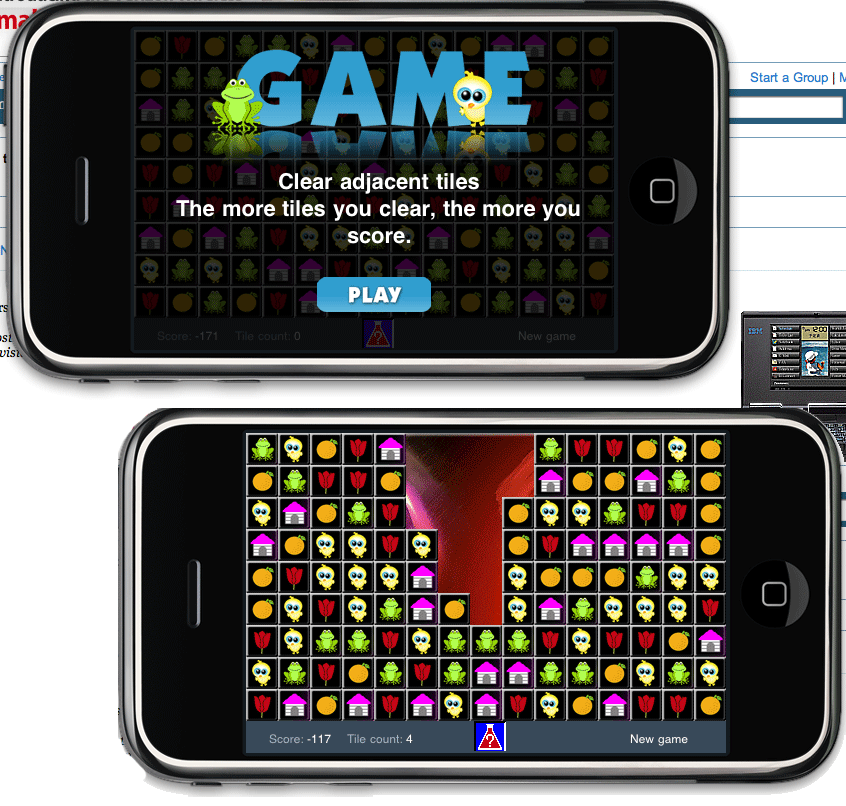
The IBM PC110 came with a DOS based PIM called PersonaWare. One part of this PIM was "Game", a highly addictive game which is known as "Same Game" elsewhere. Match the adjacent shapes to clear the board. The more you clear at once, the higher your score.
The implementation on this page is based on an original version of "Same Game" by Jason Fondren and modified by myself to become "Game".
Point at a group to see its size and points; click to clear it. On a touch screen, tap once to light a group and again to clear it. Keyboard: arrow keys and Enter.
Prefer it on a real DOS machine? GAME for MS-DOS is a free download, with the 1995 rules and scoring.
The software I use
When in Dos mode, I do either small note taking or play some games. On long journeys, my PC 110 turns itself into a glorified games machine. I do this by running a Spectrum Emulator. The executable has been reduced in size using PkLite; the games are stored in snapshot files which are between 20 and 48k in size. This means I can have a wealth of high quality (though somewhat old, mainly from the mid to late 80's) games, with a low disk space penalty. All of this software takes up only 2 meg's of space, leaving 2 meg's for data and anything else I can think of.
I did have a Windows 95 installation, which was pretty much as you would expect. I had deleted many of the system help files to free-up space.
Currently I have a multiple boot setup so I can run Dos/Dos Japanese/Windows 3.1. This is so I can use Personaware and Windows 3.1, get access to the Web and my E-Mail. I am running Microsoft Internet Explorer as my web browser.
Field tests
Five expeditions, three failures, two successes, one radio interview
The PC110 is an ideal tool for creating Web pages when away from the office, or as a high powered portable games machine, during those long train and plane journeys. When travelling, you don't want to carry a laptop with you, but a PalmTop is small enough to carry in a coat pocket or in your travel bag. To publish from the field you need two things: e-mail contact with the outside world, and a way to get photographs onto the machine in a timely fashion. Everything below is what actually happened.
-
First field test: Tiananmen Square, Beijing
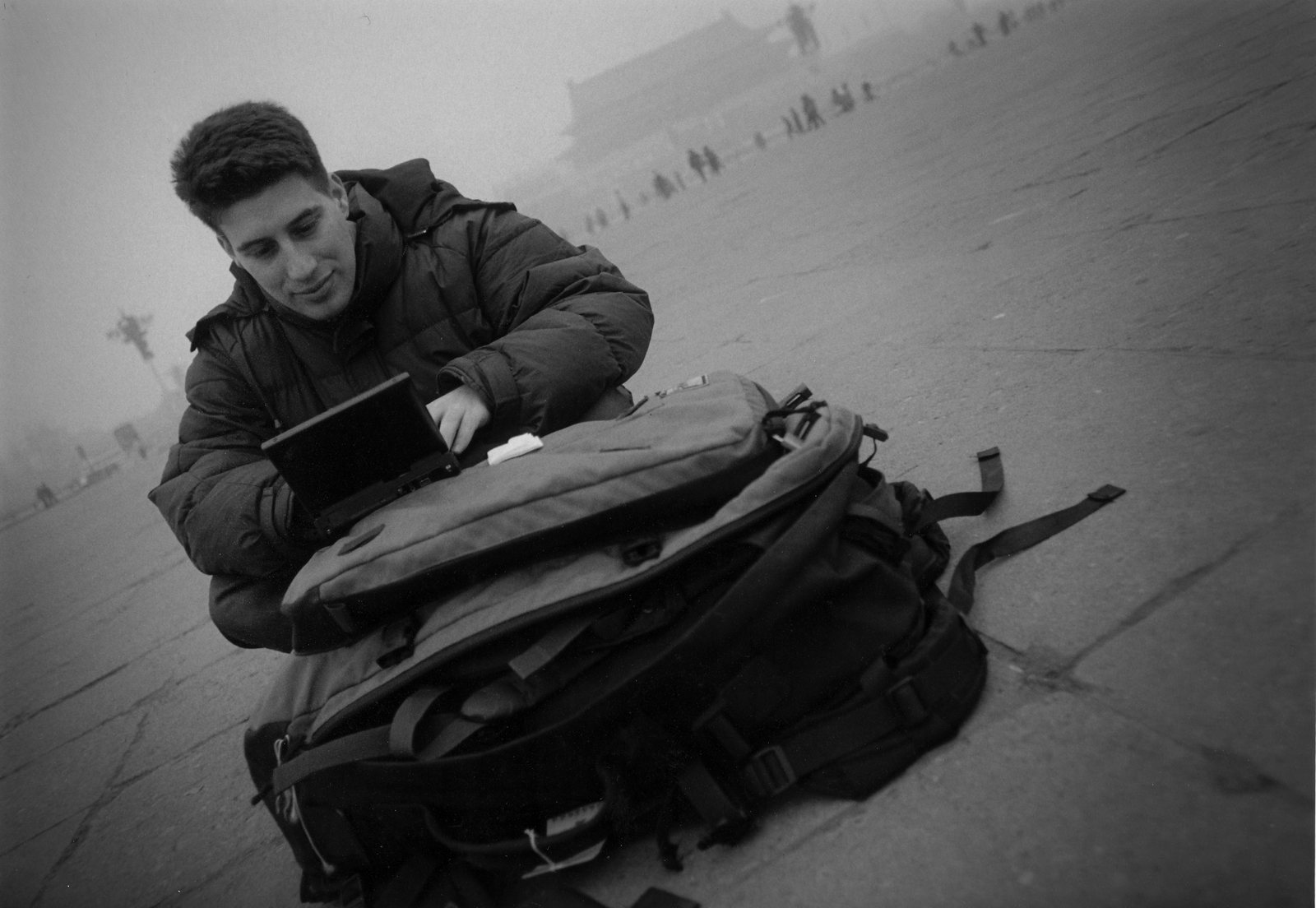
The author, Seamus Waldron, using the PC110 in Tiananmen Square · Beijing, December 1996 What a disaster this was! The theory was sound, but it just didn't work. Objective: send some e-mail from China, NOT using Windows, ie running everything from Dos, for “a profound journey”, I will need to stick a PCMCIA modem/satellite transiever into the slot that my hard disk currently occupies, therefore everything needs to be DOS based.
My solution was simple: use DosCIM to connect to Compuserve and then send my e-mail. Why didn't it work? Well, first of all, there is no access number for Compuserve in China, therefore you need to go through a 'broker' and this costs $$$$. Before I could even make a connection, the Chinese power socket blew up my power cable. The phones were all hard wired and then the batteries ran down.
If I had had more time, I would have been able to open a Chinese Internet account in Beijing and used that - however I didn't take my floppy disk drive OR my docking station with me, so even that solution would not have worked for me at the time.
Lesson: use a local access provider if you can, or subscribe to a truely Global Internet Service, and don't rely on plugging your PC110 directly into the phone line of your hotel.
-
Second field test: Over Africa, The Gambia
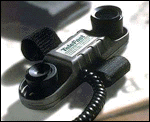
TeleAdapt Telefast acoustic coupler I joinined the Over Africa expedition, to provide remote telecommunications. Objective: have e-mail and Web connectivity. On the PC110, this will be DOS based, on the laptop, this can be Windows based. The plan: the new WebBoy DOS browser/E-Mail from IBM, IBM Global Network for internet access, solar power for the equipment, and an acoustic coupler to allow connection to any telephone. The coupler came from TeleAdapt Ltd, who sponsored me and gave me a Telefast to take on the road.
I flew out to Banjul in The Gambia on July 19th 1997. With me was my now faithfull travel companion, my PC110, a GPS, acoustic coupler, a not quite installed version of WebBoy and my snowboard.
To say that things did not go well was an understatement. The bottom line was that it was impossible to get a clean telephone line. The only access to telephones are through local GamTel offices (GamTel being the national telecoms providor). Connecting PC110 to acoustic coupler and attaching to phone should have worked, but guess what? The charging mechanism sends a very load click follwed by a blank on the line, my comms software didn't have a chance. I didn't use WebBoy as at that time it was not fully configured and I needed somebody to translate some more Japanese for me, but I did use Ameol, an excellent email package for use with the British CIX online service.
-
Interlude: “The Works”, BBC World Service
Between the 9th and 16th of August, “The Works” was broardcast worldwide on the BBC World Service. This edition, Week 32, I was the studio guest talking about the travelling I do and the technology I employ. The BBC World Service is the largest Radio station in the world and has an audience of 140 million world wide.
-
Third & fourth field tests: Hungary, Austria, Germany
The third field test was in August 1997, departure to Budapest on August 21. The trip was supposed to involve traversing from Hungary to the United Kingdom in a “combi” van. Data communication was to be attempted using WinCim/DosCim attached to a telephone using the acoustic coupler supplied by TeleAdapt. What happend was absolutely typical, I had a total failure in luck. I managed to get to Hungary, I even used my palmtop for viewing reference material I had previously downloaded, however, the "combi-van" had blown-up in Austria, so we went for a holiday instead, returning a few days later by plane.
However, the fourth field test was an absoute result. After a few days partying, I traveled through Hungary, Austria and Germany. I finally hit upon a combination of software and hardware that worked well: a global internet access account from (now defunct) IBM Global Network, which had POPs in nearly every country you can think of, and Ameol from CIX.
-
Burgundy, France: communications on the move
For three weeks in September 1998, I was in the Burgandy region of France. Quiet, out of the way, noisest thing, the local duck. With a modem upgraded PC110, Ameol, IBM Global Internet, my TeleAdapt Telefast acoustic coupler a telephone card and telephone box, I was able to upload/download my email and surf the web with absolutely no problems at all. This is how it should be. Nothing to report other than, total success.
More on the coupler in The Telefast acoustic coupler, and on life on the road with the PC110 in Email on the move.
Entertainment on the move
So, you don't want to use your PC110 all the time for work? How about playing some games. Well, first of all, there is the game in Personaware itself (it's just called "Game"). Once you get into it, it is fiendishly addictive and difficult. However, what do you do if you really want to play a game?
DOOM, what else? Get it cranked up on your harddisk, get volume up and play it on the underground when the guy next to you has his walkman blaring too loudly. Ha! Revenge is sweat. But Doom has to be played on your Hard Disk. what do you do is you want to play games for more than and hour? Well, you have to run your game from the internal flash card. Unfortunately, you have to run your OS and probably PersonaWare as well. what do you do? Well, so far, I've found the best solution is to have a ZX Spectrum (in the USA this was called a Timex) emulator and then a handfull of games (each of these only take up about 48k). Your'e not going to get Doom, but there are quite literally thousands of games out there and a huge number of them are superb.
To be fair, you are not going to get DukeNukem or F1 Grand Prix 2 running at great speeds on a PC110. What will work well are games that you were playing a year or so ago. Command and Conquer should run (haven't tried), Doom is great. I mainly play Sinclair Spectrum games on a spectrum emulator. These games are small in size but high on playability. Also, I play games that were knocking around on the PC about 6 years ago.
Questions & answers
Real questions I was asked, and the replies: period advice, preserved
This page has examples of real questions that I have been asked and their replies. I do not take any responsibilty for the accuracy of replies though you should have no problems.
Should I get a PC 110?
My advice, if you get one, would be to clearly define in your own mind what it is you want to do with it. I use mine as a cross between a business machine (window95 on hard disk) and leisure machine & PIM (remove hard disk and use internal flash rom to host PCDOS 7 and various DOS software). When you know what you want to do, then get the machine to suit.
Where can I get one?
Douglas Krone at Dynamism used to supply the PC110 and may have some units or spare parts. However, the supply of PC110 units has almost run dry.
In 1999 this answer read: "Douglas Krone at ConnectTech offers the YDW to internet customers for $1295. This includes Fedex economy shipping. Visa/Mastercard accepted with no surcharge." The site's buying page added: "The PC110 Palmtop Page has teamed up with Dynamism to give you the easiest way in the world to buy a PC110. ... When you request information, Dynamism will get straight back to you, to confirm details and pricing. Be sure to mention where you read about the PC110."
Does it use regular AA size batteries?
No it doesn't. It has a battery from IBM (Part No 84g7953), but I am told Sony sells them as well (last about 15% longer apparently). I can only assume then that it is standard of sorts.
However, I am creating a cradle that will take standard D-Cell batteries and plug into the Main connector. This will be so I can have emergency power when I'm far away from anything remotely like a Sony Centre!
Does it come with 1 or 2 rechargeable batteries?
I got the one, but it does re-charge resonably quickly. I would expect that having two would make life a lot easier.
How long does a charge last?
When I'm running Windows95, I get only about an hour. Running from the flash card give me at least double that (I've never run it all the way down).
How do I use the PS2 utility?
PS2.EXE is the configuration program for the PC110. Whereas EasySetup (the BIOS configuration) concerns itself with just hardware devices, PS2 covers this plus power management and other small configuration details. Information sourced from Daniel Basterfield.
The commands are in the software section.
Can I add more RAM?
Well, I got mine with 8 meg. It can go to 16 and higher, but above 16 would definately be bootleg.
Is the display good?
The display on my machine is very clean and crisp. Small, but clear. I personally have no trouble with the size of fonts under 95, though my collegues have said it was too small.
What does it come with in the packing?
I got a power supply, battery etc. as you would expect. The power lead can work in the States (so I am told). Over here in England I use a standard 9 volt adapter and have no problems. (The PC110 works is meant to work on 10.5v). To carry the thing around in, I use an old Compaq portable carry case. In it, I can snuggly fit the PC110, Docking station, power lead, a few disks, the HD (when it is in it's supplied pouch) and a mouse.
If I buy the YD0 model (no docking station), can I get at the serial/parallel ports with a custom made cable?
Without the docking station, there is no RS232 that I can see (I could be wrong), though there is a custom connector for keyboard and mouse.
Can I write on the screen with a pen or finger?
The screen is not touch sensative. The touchpad thing only works from within PersonaWare and does not support character recognition. The idea is that you use it for signing faxes and suchlike. A small driver has since been written that allows you to use the touchpad as a mouse in Windows 3.1/Windows95, see WMousePd in the community section.
Can I use Graffiti on the PC110? In short, no. To my knowledge, the only app. that uses the digitizer is Personaware and this is Japanese only.
What about the PCMCIA slots and a bigger hard disk?
It's 2×type II PCMCIA slots which will work as 1 type III. My HD is Type III and therefore I have no additional room for a pcmcia modem. The HD plugs into the PCMCIA slot, so if a drive is PCMCIA V2.1 (apparently V2.0 will not work), then in theory a 1 GB drive should work.
Can the internal modem be upgraded?
There's no known way to change out the internal 2400 modem. What can be done is: run Win95 on a Type 3 hard drive, but when you want to do some serious web surfing, have Win 3.1 on a 20MB Flash card and boot it and then have a 28.8 modem in the other slot.
Which version of Windows 95?
If you're currently running Windows 95 on an IBM PC110, I strongly recommend upgrading to Windows 95 OSR2 if you can. OSR2 is an "OEM System Release" of Windows 95 which is not sold to the public, but which is available to Microsoft Windows developers for compatibility testing, as part of the Microsoft Developer Network subscription.
OSR2 solves at least two annoyances with Win95 on the PC110:
- It can power down a PCMCIA hard disk during idle time, without needing PCMCIA drivers to be loaded. This can increase battery life noticeably.
- It has an option that removes the screen redraw when you wake up the PC110 from "sleep" mode.
Little things, but useful. Amanda Walker
Sound drivers in Windows 95
Windows 95 will recognize the internal sound card as an ES488 AudioDrive but may not work. If you remove this driver and install the Sound Blaster driver, it will, but you will not get Volume Control on your Taskbar. A solution is to keep the ES488 driver and just manually change IRQ number from 7 to 5 in Control Panel > System > Devices > Sound > ES488 > Properties > Resources.
The ROM password
To remove a password: at the password prompt, type the password, then a space, then Enter. To change it: type the password, a space, the new password, another space, the new password again, then Enter.
The 256-colour saga and its solution
Robb Woldman wrote to me recently to tell me of his experiences getting to grips with 256 colours on his PC110. Firstly, Rob e-maild T-Zone in the States about 256 colour drivers. He could not get English Win95 to run in 256 colour VGA mode, the machine died and rebooted to 16 colours every time, with the C&T Super VGA driver giving a scrambled strip at the bottom of the screen. Five out of six people on comp.sys.palmtops had no trouble at all; the sixth had the exact same problem.
Rob then asked me for some information, but alas I can't even get 256 colour to work on Windows 3.1, let alone Windows 95. However, Rob found out some more stuff and e-mailed me this: "The 256 color VGA problem is memory related. ... It's frustrating because I talked to a lady in Hong Kong that had an identical problem; she took it back, and while they were able to fix it (rather quickly I might add), they told her about the memory conflicts but refused to elaborate on what they did. I heard back from Amanda and she thinks that when you install the 20 meg upgrade, there is also a Flash Bios update that needs to be performed somehow."
The culprit: the 20 meg memory upgrade requires a Flash BIOS update.
The fix (in Robb's words): “Seamus, pop open a bottle of champagne!! Believe
it or not, we can now close the chapter on 256 display problems in Win95!!!” Format
a floppy, then at a C: prompt run loaddskf /f biosup.dsk a: to create the
patch disk (loaddskf /f creates a 720k disk from your 1.44 3.5"). Boot from it, hit F5
halfway through to bypass config.sys, and type
xpatch at the A: prompt, the response should be “OK”. Cold boot, check with
xpatch ? (“completed.”), put the HD back in, switch the display to C&T
Accelerator at 256 colors. Lo and behold, it worked! The files are in
downloads.
What's this about a DOS web browser from IBM?
WebBoy is a DOS based Web Browser which has e-mail capabilities. It's small footprint allows the utilisiation of older (386, 486) PC's to access Intranets and the Internet.
Due to the huge interest in this product, I have created a Web Site specifically for it.

Bigger CompactFlash cards (from the field)
Randy Stauffer contacted me about how he is using a 15meg capacity compact flash card:
I read of your travel problems using the DOS CIM, etc. Just FYI, I've bought one of those compact flash cards (called smart picoflash in the 110 manuals) with a capacity of 15MB. On it I have a complete Windows 3.1 installation (without some of the junk like character map, etc., and also with no help files), along with WinCim version ? (can't remember). I've also got a remote client for my business email connection via a Citrix WinView dial up. I use the little 4MB flash that came with the 110 for addresses, etc, and intend to eventually install your English PersonaWare modules there.
In any event, using the compact flash you can install a mimimal version of Windows along with WinCim and have a GUI for your WWW and Email use. Also extends battery life significantly - gets close to 3 hours using the Sony NP530 series battery.
Thanks for all your work on your 110 pages - you've really managed to bring together all the stuff that I spent hours searching for last August when I got my 110. I can now bookmark your page and dump the hardcopy printouts....
Additional Information. "I got the compact flash at TZone in Sunnyvale, CA (I live in the general area), and it cost around $200 - $250 USD. I got the battery at an Electronics store called the Good Guys here, and it cost around 70 USD."
The brochures
How IBM Japan sold it, now in English. Keep scrolling; the brochures turn sideways.
The PC110 was only ever sold in Japan, so its brochures were in Japanese. Park HS, from the IBM PC110 group on Facebook, has rebuilt two of them in English, keeping the original layouts: the launch leaflet from October 1995 and the brochure from May 1996. They are reproduced here with Park HS's kind permission. The prices are the translator's conversions into Korean won. Click any page to open it full size.
October 1995 · Launch leaflet, front and back
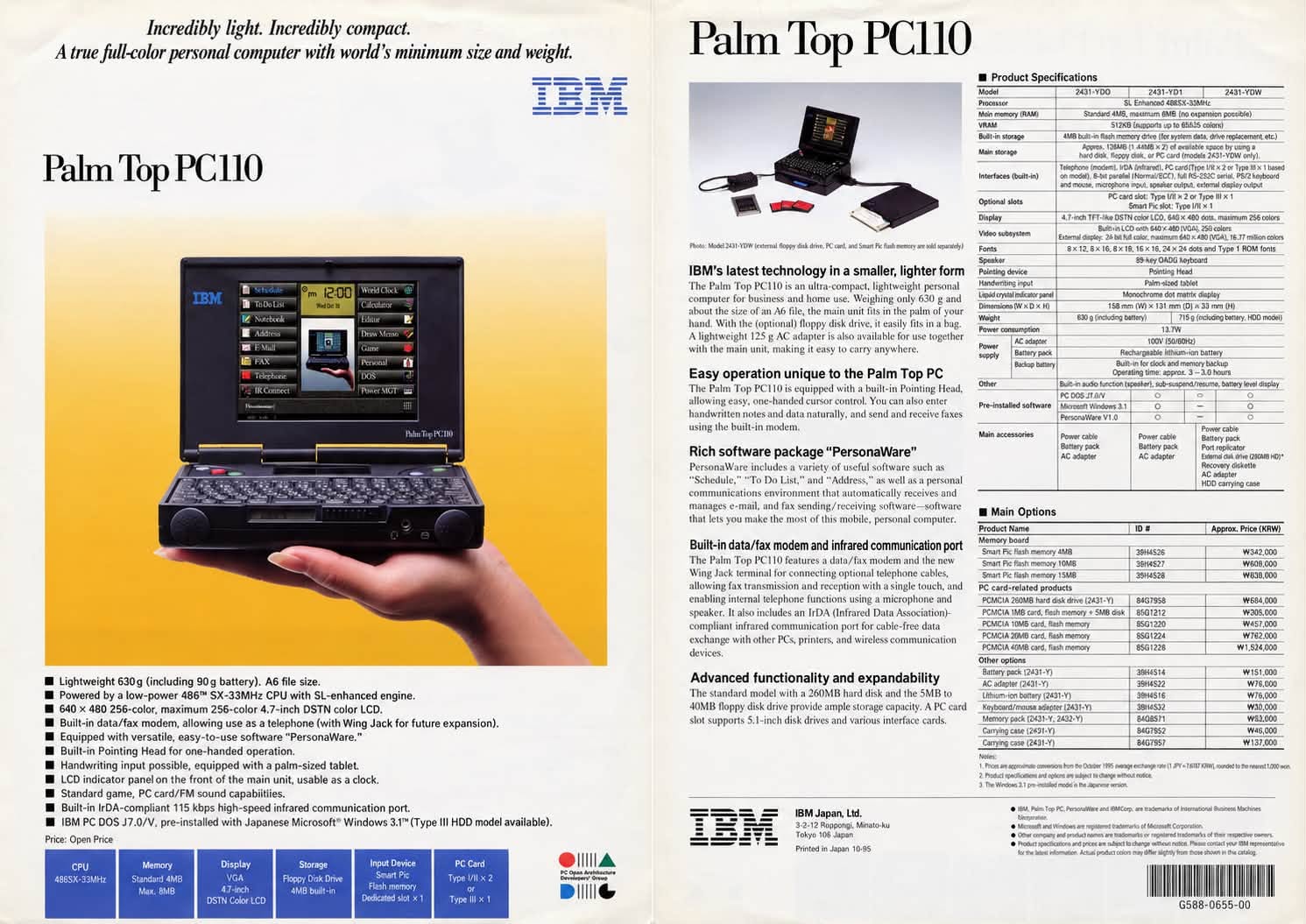
The leaflet printed for the launch. The front is the picture everyone remembers, the whole machine sitting in one hand. The back lists the three models, the YD0, YD1 and hard-disk YDW, and a price list of options from Smart Pic flash cards to a 260MB PCMCIA drive.
May 1996 · Brochure cover and opening page
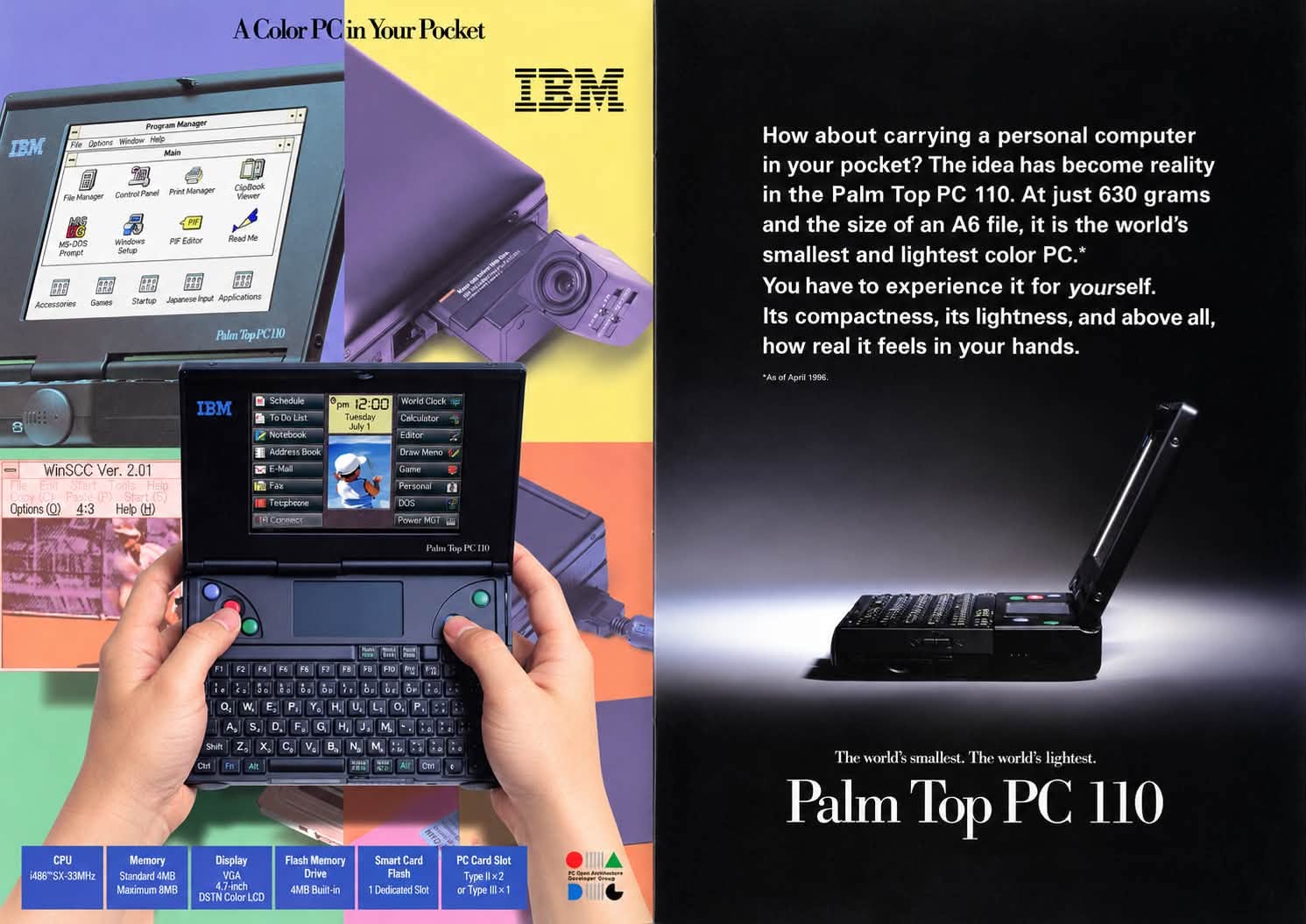
“A Color PC in Your Pocket”: Windows 3.1, PersonaWare, two thumbs on the keyboard and, top right, a Canon CE300 camera card swung out of the slot. Opposite, the pitch: 630 grams, the size of an A6 file, and the world's smallest and lightest colour PC, as of April 1996.
May 1996 · A PC that makes people want to see it
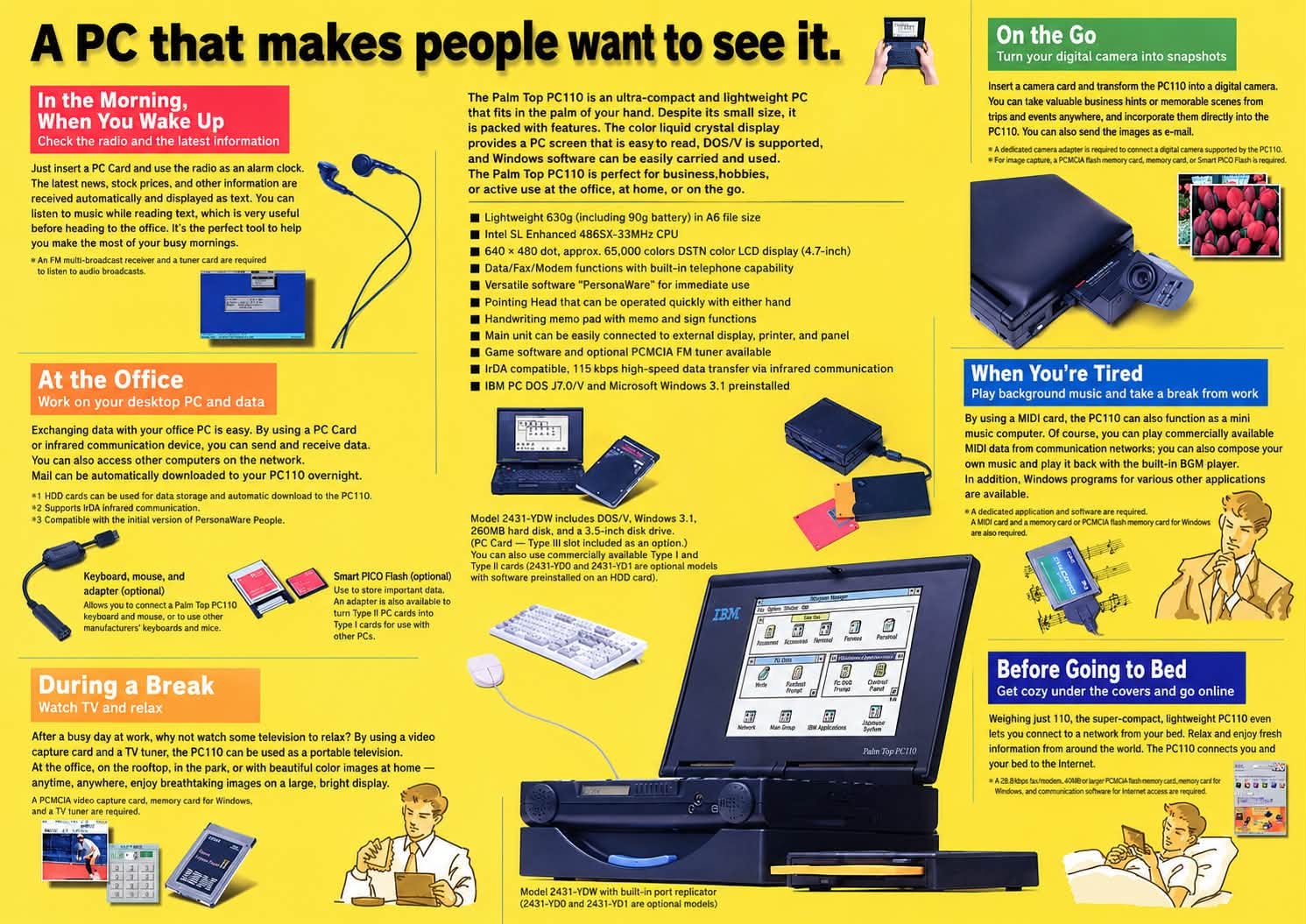
A day with a PC110, from the radio alarm in the morning to getting online under the covers at night. Nearly every scene needs another PC card: an FM tuner, a video capture card, a MIDI card and, for “On the Go”, the camera card again.
May 1996 · Pages 7 and 8, PersonaWare and the specification
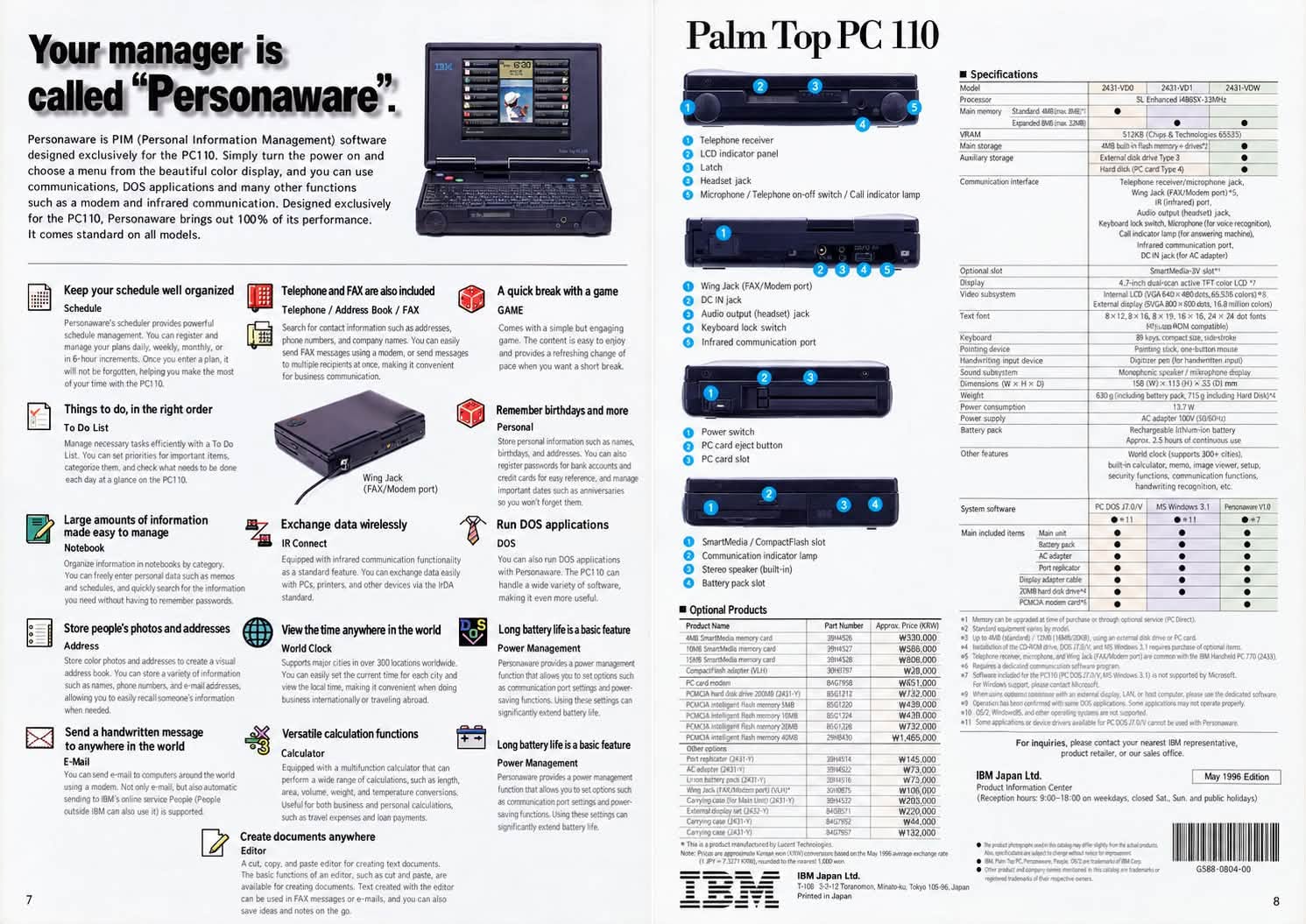
“Your manager is called Personaware”: a tour of the PersonaWare modules, from Schedule to Power Management. The back page has the port-by-port diagrams, the full specification table for all three models and the optional products.
The community
The PC110 web ring, preserved
IBM did not do a good job promoting the PC110 palmtop, but the community that exists today keeps this unique computer alive and well.
Still going today
- IBM PC110 on FacebookThe group for PC110 owners today, where the machine still has a following.
- Open-Source PC110, on GitHubThe whole machine reverse-engineered: schematics, board layouts, ROM dumps, a service manual, mods and the PC110 Atlas emulator.
- PersonaWare English, on GitHubAhmad Byagowi's modern build: run PersonaWare without having to use a Japanese DOS configuration.
The web ring, archived
The English PC110 community grew steadily through the late Nineties, but alas has peaked, as users move towards more modern machines. Before users started to remove websites, this list was the start of an archiving effort. Most of these sites are long gone from the live web, every link below goes to the Internet Archive's copy, nearest to 2003.
- The PC110 ListserverYahoo groups hosted the PC110 mailing list, the community's living room.
- Julie Strietelmeier, The GadgeteerJulie is into gadgets and for many years hosted the PC110 listserver. Also hosts the English manual.
- Daniel BasterfieldInstalling Windows 3.1, 95, NT and OS/2; huge amounts of usage tips; overclocking to 40 MHz.
- Marko Schuster's FAQComprehensive FAQ about the PC110. Essential reading when you get your PC 110. Version 1.40 (June 1998), as hosted on this site, restored in full.
- Amanda WalkerConfiguring the PC110 for English operation, Windows 95 installation, and a PDF showing the machine's actual size.
- Little Travel GuyHumerous interlude. Little Travel Guy went on holiday and took his PC110 with him.
- Yongguang ZhangThe PC110 running Linux.
- FreeBSD on a PC110Unix in your hand, experiences running FreeBSD on the palmtop.
- IBM wearablesThe only known mention of the PC110 on the IBM USA website.
- The PC110 manual, in EnglishThe essential information you need in order to operate the PC110.
- WMousePdThe Windows driver for the touch/pen pad.
- Hermit JPA Japanese mini-FAQ and stuff that does look interesting, if only I could read Japanese.
- Ozaki JPWeb site in Japanese, with information on various IBM products and the HP 200LX. The PC110 section contains some good photographs, giving you a sense of size and showing you exactly what the inside of a PC110 looks like.
- Robb WoldmanRobb supplied me with a lot of information about how to configure the PC110 to run in 256 colours under Windows 95. His e-mails are in the Q & A above.
- Valtan's Home Page JPThis is a new site which is quite sparse but has a large collection of PC110 links. You navigate around the site using a PersonaWare type interface.
- AnswerSleuthLots of links about PC-110 and Libretto, and other portables.
- Starliner's PC 110 PageLinks to PC110 FAQs in pdf files.
The early ring
Earlier versions of the list, from 1997 to 1999, also pointed to these sites.
From the 1999 page: The English PC110 community has been steadily growing over the past few years. It is just about to hit a critical mass as more and more people find out about this fantastic piece of hardware. Even though the PC110 is shunned in the west when Palmtops are reviewed, more and more people are trying to find information. This section of my site is dedicated to those expanding the PC110 community. I will list anybody here who decides to contact me. I will list web sites and e-mails. I would especially welcome contacts from the Japanese PC110 community, as to date we share little information.
- The listserver, on WebstreamJulie Strietelmeier: "Julie is the administrator for the PC110 listserver."
- ChuckTravel to "Chuck Land". Where he bought his PC110 and some general information. Also some information on the Quick Cam.
- Alan's PC110 PageThis site mainly revolves around the use of Linux on the PC110. There are some excellent programs for Linus which will hopefully be converted to DOS.
- Neil Franklin's Palmtop Auswahl DEGerman Palmtop Page covering the PC110 and Libretto. You can find a synopsis of palmtop discussions (mixed in English and German).
- Eiji Kako JPThe only web site for programming for the PC110. Unfortunately, my Japanese isn't too hot and the promised English version is not there yet. Could be interesting soon, probably is interesting if you can handle Japanese.
- Kenji Kamio JPWeb site in Japanese. I have absolutely no idea what is written on the site.
The Japanese sites were linked through the Shodouka service, which meant that even though the site is in Japanese, it will display correctly.
Also on the early list, and not archived: Claude Landry, "Quick read FAQ about the PC110."
From the 1999 newsletter
Early in 1999 the site ran a weekly PC110 newsletter. Three issues survive in the Internet Archive; these were the headlines.
The 2001 vote
In 2001 the site added "the first stage in the PC110 archive. Help create the definitive list of PC110 sites. You can also vote for your favorites!" To vote for the site, just click on a number between 1 and 10. This is how the list stood when the Internet Archive captured it in October 2003.
| Site name | Author | Rating | Votes |
|---|---|---|---|
| Zyggher's PC110 Page (not archived) | Nyal Bartch | 9 | 77 |
| Dan Basterfields PC110 site | Daniel Basterfield | 9 | 41 |
| The PC110 Palmtop Page | Seamus Waldron | 7 | 18 |
| IBM Palmtop PC 110 FAQ | Marko Schuster | 7 | 21 |
| The Gadgeteer | Julie Strietelmeier | 6 | 14 |
| cleverboxes.com | Teresa | 5 | 2 |
AD&D GamesMaster
Palmtop machines can have many uses, but Andrew Prentis uses his PC110 for storing information for past, future and current campaigns in the mystical world of Dungeons & Dragons (and it's ilk). He also uses it to create some web pages for his site Fallow's Cross.
Downloads
The archive shelf: every file, still here
PersonaWare in English, converted module by module, plus the BIOS patch that ended the 256-colour saga, and the small tools that made the machine liveable. Served from this site, as they have been since 1998.
- BIOS upgrade loaddskf.exe + biosup.dsk: the xpatch fix for 256-colour Windows 95 on 20 MB machines.
- PersonaWare in English Full English-converted PersonaWare modules. First released February 1997, last updated April 1998.
- PersonaWare for non-Japanese Windows Everything needed to run PersonaWare on a non-Japanese machine. Unzip to c:\pwe.
- PW98, PersonaWare for Windows 95 Beta re-implementation: address book, the Game, email launching.
- Outlook → PersonaWare converter Converts an Outlook CSV export to the PersonaWare address-book format.
- World Clock city data (English) Rich Belgard's English city file for the PersonaWare World Clock, with updates.
- Ultra Charge - Recharge whilst you work! A utility to recharge your PC110 whilst you work. PT-110 Operation Charge Enable / Disable Program, Version 1.00, (C) 1996 HA/BMF. Usage: ULTRACHG Enable | Disable, effective from the next charge.
- This site, offline (1998) The PC110 Palmtop Page as it stood in February 1998: twelve pages of text, no images, with VH, Kevin Solway's DOS HTML viewer. Run PC110.BAT.
- GAME for MS-DOS (2026) My free remake of the PersonaWare tile puzzle for DOS: the 1995 rules and scoring, the 2014 iPhone artwork, any VGA PC or DOSBox. Tested in an emulated 486, not yet on a real PC110.
- PersonaWare English (2026) Ahmad Byagowi's modern build: run PersonaWare without having to use a Japanese DOS configuration. Also translates the dialogs, warnings and help panels, and comes as a bootable disk image with a PC110 installer.
To install the English PersonaWare modules: change to your PersonaWare directory and make a backup of all your .EXM files, copy the files in the archive over, and run PersonaWare as normal, now it is in English.
PWE.zip: PersonaWare on a non-Japanese Windows machine
Okay, this installation works for me on one Windows 2000 installation, but not on another. However, all the componants are included to give you the potential to get Personaware working on a non-Japanese Windows machine. Not all of the PersonaWare modules work, though "Game" does (which is why I did this in the first place).
Unzip the zip file. Make sure everything lives in c:\pwe. If you want to change the location, you have to edit the file "pw.bat".
I have added DOSJ and DOSJAUX (TSR programs that add japanese DOS capabilities to normal DOS) to the PWE directory. I have also added some japanese fonts into a sub directory called "jfont". The batch file "pw.bat" sets up DOSJ with the required fonts, the DOSJAUX program for added emulation of japanese DOS and then runs PersonaWare.
convert.zip: the Outlook to PersonaWare converter
This utility, though a very rough beta, will convert an Outlook comma Delimited Output file to the PersonaWare data file format.
From Outlook, export the address information as a CSV file. Just choose any defaults presented to you. Run the conversion program, it is pretty self evident. Browse for the CVS file and then hit convert. If it looks OK, click Save As...
The conversion process is controlled by a data file. This is so I can easily add different conversion processes. If you look at outlook.txt, you will see all of the fields from the outlook CSV file. I have numbered them for reference. Now, look at the Outlook.Dat file. For each PersonaWare field (0..20) they are made up of a single or list of corresponding outlook fields.
I'm explaining all this so that if you want to play with the conversion process you can.